SVG Icon Picker – Heroicons, Feather, Ionicons
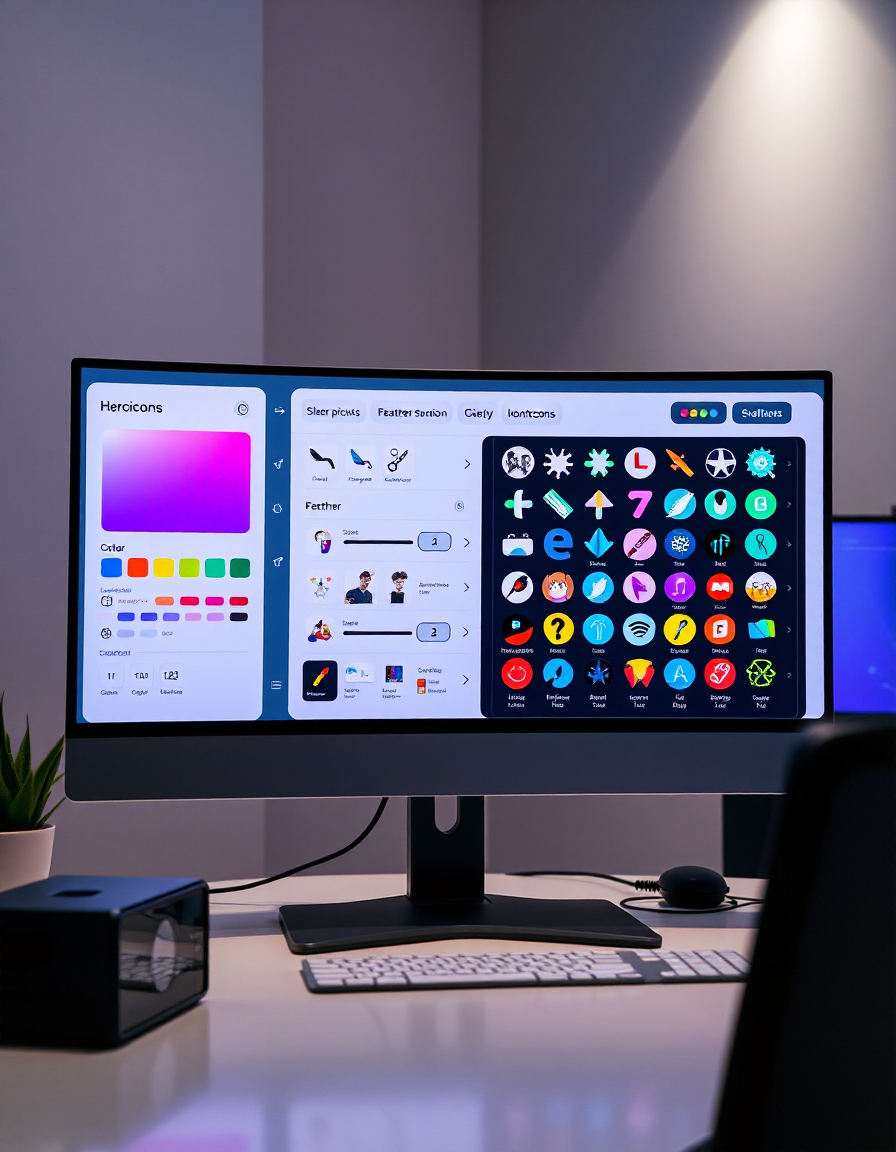
Easily select and copy SVG icons from popular libraries including Heroicons, Feather, and Ionicons directly in your browser. This tool allows designers, developers, and content creators to quickly preview icons, customize size and color, and export code without relying on any external API.
With RideWattly’s SVG Icon Picker, you can browse over 1000 icons, manage favorites, and instantly generate HTML or React code for seamless integration into your projects. Customize your icons with live previews, color adjustments, and size controls to match your design needs.
Whether you are creating a website, a UI project, or a mobile app, this tool provides a fast, interactive, and user-friendly way to enhance your designs with high-quality SVG icons.
2️⃣ How to Use
Using the SVG Icon Picker is simple and interactive. First, choose a library tab: Heroicons, Feather, or Ionicons. Then, use the search bar to quickly find the icon you need.
Customize your selected icon by adjusting the size and color to match your project design. Preview changes instantly in the preview area.
Finally, copy the code in your preferred format—HTML or React— with a single click, ready to paste into your project.
Start Using the Icon Picker →3️⃣ Tips / Guide
- Use Favorites: Mark your most-used icons to quickly access them later.
- Heroicons Styles: Switch between Outline and Solid for different visual emphasis.
- Search Smart: Use keywords related to shape, function, or category for faster results.
- Color & Size: Adjust live preview settings to ensure icons fit your UI perfectly.
- Export Options: Choose HTML for websites or React for modern frameworks.
4️⃣ Why It Matters
Selecting the right icons quickly can drastically improve your design workflow and maintain visual consistency across your project. High-quality SVG icons are scalable, lightweight, and easy to style, making them essential for modern web and mobile applications.
By using RideWattly’s SVG Icon Picker, you save time on searching for icons, reduce external dependencies, and ensure that your projects remain clean, professional, and efficient.
Whether for prototyping, UI development, or production, having a dedicated, interactive tool for icon selection improves accuracy, creativity, and overall productivity.
Select from 1000+ icons. No API needed.
Preview
HTML/SVG Output
FAQs & Tips
-
The SVG Icon Picker is an interactive tool that allows you to browse, preview, and copy icons from Heroicons, Feather, and Ionicons libraries for use in your projects.
-
Use the search input to filter icons by name, keyword, or category. The tool updates results instantly as you type.
-
Yes, you can adjust the size in pixels and change the color using the color picker. Preview changes live before exporting.
-
The tool allows you to copy icons as HTML for websites or React JSX for frontend frameworks.
-
Absolutely. Click the star icon on any icon to add it to your Favorites tab for quick access later.
-
No API key or external login is needed. The tool works entirely in your browser.
-
Yes, RideWattly provides it freely for designers, developers, and content creators.
Advanced FAQs & Pro Tips
-
Yes, select the React export option to copy JSX code directly into your React components.
-
Use the search bar, library filters, and the Favorites tab to quickly access commonly used icons without scrolling endlessly.
-
Currently, customization applies to individual icons. For multiple icons, adjust size and color per icon before copying.
-
Add descriptive
alttext for HTML exports or aria-labels for React components to maintain accessibility. -
Absolutely. You can select icons from Heroicons, Feather, and Ionicons in one project while maintaining consistent styling.
-
Use the SVG size input or CSS scaling to maintain vector quality. Avoid rasterizing icons for responsive layouts.
-
Click the ⭐ icon on any icon to add it to the Favorites tab. You can access all saved icons quickly during future sessions.
-
The tool is browser-based and works offline after initial loading of the page and icon libraries.
Similar Tools You May Like
📄️ Template Manager Tool
Organize and manage your templates efficiently for faster content creation.
📋 Quick Text / Code Keeper
Save, organize, and reuse your snippets of text or code instantly.

🎨 Ultimate Color Spectrum Explorer
Explore, compare, and pick perfect color combinations for your projects.
⚖️ Content-to-Code Ratio Checker
Analyze your web pages to ensure a healthy balance between content and code.

🛴 E-Scooter Range Calculator
Estimate your e-scooter range based on battery, rider weight, and terrain.

🛣️ Between You & the Road
Analyze riding conditions and terrain interaction for safer, smoother rides.

🛡️🚲 E-Bike Insurance Estimator
Calculate insurance costs and coverage options for your e-bike quickly.
📝 Smart Header Generator
Create SEO-friendly headers and titles for your website content effortlessly.
🔧 Similar Tools
This tool is part of the educational resources published on RideWattly. Results should be used as a reference only and not as professional engineering advice.