Advanced Clip Path Generator — Full Pro Version
Building and managing complex visual interfaces requires precision, structure, and full control over every element on the canvas. The PRO Visual Editor System is designed for creators who need a powerful environment to design, organize, and manipulate layers and projects in real time.
With this advanced editor, you can create and manage multiple projects, organize unlimited layers, and interact with a fully dynamic canvas system. Every element can be moved, duplicated, deleted, and updated instantly, while maintaining full synchronization between the UI and the internal state.
Whether you're building UI mockups, experimenting with layouts, or developing complex visual systems, the PRO Visual Editor gives you full control with a clean, responsive and high-performance workflow designed for professionals.
How to Use
- Create a new Project to start organizing your workspace.
- Add elements using the + Add Layer button (shapes, images, or custom items).
- Select any layer to move, resize, duplicate, or delete it in real time.
- Use the history controls (↶ ↷) to undo or redo changes safely.
- Switch between projects instantly to manage multiple designs in one system.
Tips / Guide
- Always structure your work into separate projects for better organization.
- Use layers strategically — one element per layer keeps the system clean and editable.
- Duplicate layers instead of recreating them to speed up workflow.
- Use undo/redo frequently when experimenting with layouts or shapes.
- Keep your canvas light — too many active layers may reduce performance.
Why It Matters
A structured visual editor system is essential for building scalable designs and interactive interfaces. Without proper layer and project management, complex designs become chaotic and hard to maintain. This tool ensures full control over every element while keeping the workflow fast, stable, and predictable.
Who Should Use This Tool
- UI/UX designers building wireframes and interface mockups.
- Developers testing layout structures and visual components.
- Product designers creating interactive prototypes.
- Students learning how visual editing systems and layer logic work.
- Anyone building or experimenting with dynamic canvas-based tools.
FAQs & Tips
-
It is used to create and manage interactive visual layouts with layers, shapes, images, and multiple projects in a structured canvas system.
-
Layers are individual elements on the canvas (shapes, images, or objects) that can be moved, edited, duplicated, or deleted independently.
-
Yes, the system supports multiple projects, allowing you to switch between different designs instantly without losing progress.
-
Yes, you can use the undo (↶) and redo (↷) system to safely revert or reapply changes during your editing process.
-
This usually happens when the selected layer or deleteMode is not properly set. The system needs an active selection before deletion can be executed.
-
Yes, it is designed for UI/UX mockups, layout testing, and experimental visual systems, making it suitable for both learning and professional workflows.
Advanced FAQs & Pro Tips
-
This usually happens when the render system is out of sync with the state. Make sure the canvas is re-rendered after any layer update and that the correct layer ID is selected.
-
This is often caused by missing state reset between projects. Each project must reload its own layers and history stack independently.
-
Deletion requires a valid selected layer or project. If state.deleteMode or selected item is not set correctly, the system will ignore the action.
-
Always avoid duplicating state sources. Use a single source of truth for layers, projects, and history, and ensure every change goes through render + save cycle.
-
Create a project → add layers → edit incrementally → use undo/redo frequently → save state after each major change to avoid data loss.
-
This can happen when render() clears the canvas but layers array is empty or corrupted. Always validate layer data before rendering.
-
Limit unnecessary re-renders, batch updates when possible, and avoid full state rewrites on small changes.
-
Yes, the architecture supports new layer types, tools, and actions as long as they integrate with the state + render pipeline.
Clip Path Examples
Similar Tools You May Like
💻 RideWattly IDE PRO
Advanced coding workspace for building and testing e-bike tools.
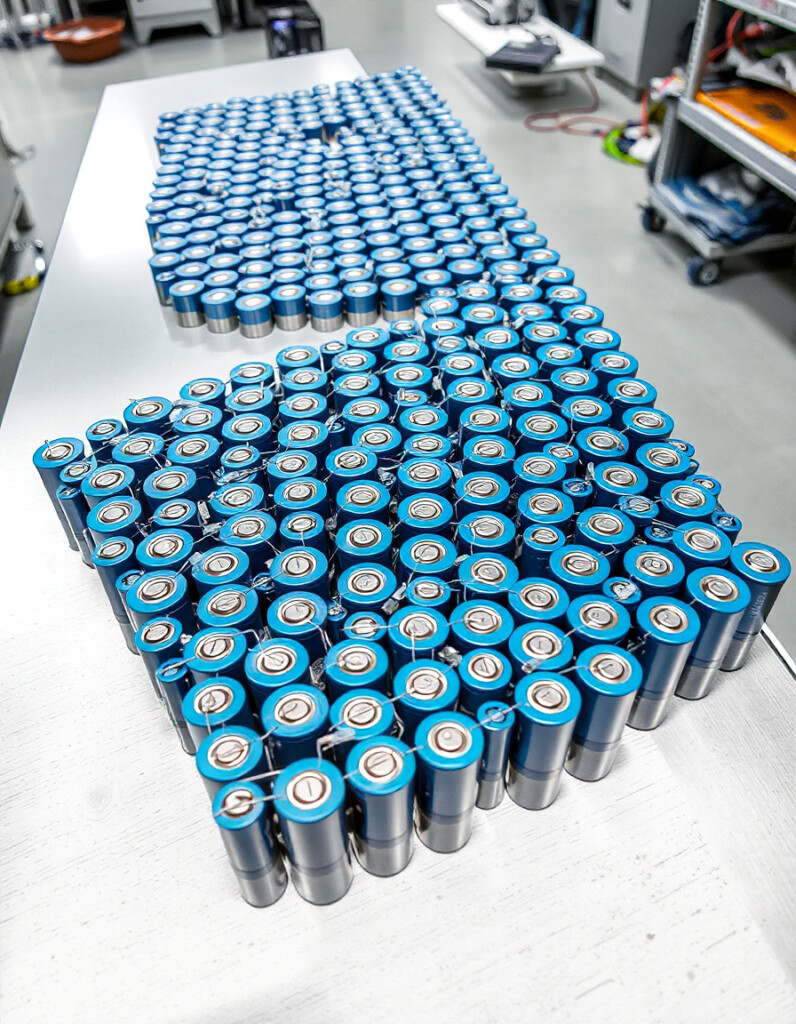
🧩 Battery Pack Builder
Design and visualize custom battery pack configurations.

🚴♂️ Advanced E-Bike Simulator
Simulate speed, range and performance under real conditions.
📋 Smart Ride Advisor
Get personalized e-bike setup recommendations instantly.

⚡ Voltage vs Amps Motor Tool
Understand motor behavior and electrical performance visually.
🔋 Consumption Calculator
Calculate real energy usage and efficiency of your e-bike.
🛠️ Smart Controller Helper
Program and tune your e-bike controller with precision.

🛞 Tire Pressure Advisor
Optimize tire pressure for better safety and performance.
🔧 Similar Tools
PRO Visual Editor – Interactive System Docs 3.0
This is the interactive architecture layer of the PRO Visual Editor. It not only explains the system — it lets you understand how it behaves in real-time mental simulation.
Live System Flow Simulation
Every interaction follows this deterministic pipeline. There are no exceptions.
State Visualizer (Mental Model)
- state.projects → Containers of workspaces
- state.layers → Active canvas objects
- state.history → Time travel snapshots
- state.selectedLayer → Current focus target
- state.deleteMode → Action intent resolver
If state is wrong → UI is wrong. Always.
Bug Simulation Engine
Click a scenario to simulate system failure:
Debug Thinking Model
- Did state change correctly?
- Was render() triggered?
- Is the correct project active?
- Is selectedLayer valid?
- Is UI reflecting state or stale data?
If step 1 fails → everything else fails.
Architecture Control Panel
System Philosophy 3.0
The PRO Visual Editor is a deterministic state machine. Every pixel is a consequence of state → render transformation.
There is no “UI logic”. There is only state interpretation.
This tool is part of the educational resources published on RideWattly. Results should be used as a reference only and not as professional engineering advice.