Gradient Palette Generator — Drag & Drop Color Stops
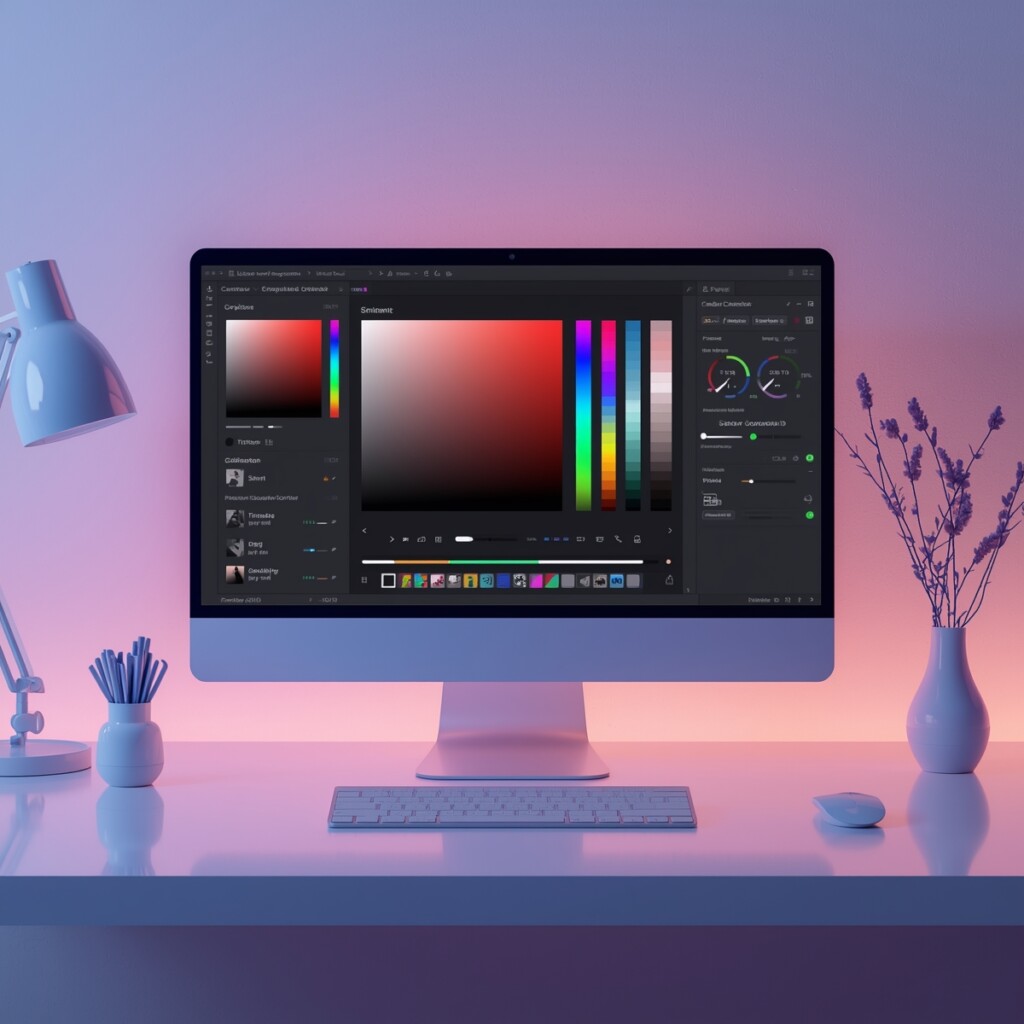
Creating beautiful color gradients is essential for modern UI design, web design, and digital artwork. Gradients add depth, visual interest, and a professional touch to websites, apps, and graphics.
RideWattly’s Gradient Palette Generator allows designers, developers, and enthusiasts to drag and drop color stops, preview real-time changes, and export clean CSS gradient code for immediate use in projects.
Whether you’re fine-tuning a subtle background fade, creating vibrant hero sections, or experimenting with multiple colors, this tool instantly visualizes your palette, lets you adjust direction, and provides seamless integration into your code.
Optimize your designs with this gradient color palette tool — perfect for web developers, UI/UX designers, and digital creatives. Use our drag & drop gradient editor to generate stunning linear and diagonal gradients, save custom palettes, and export them in CSS, JSON, or for embedding directly into your projects.
How to Use the Gradient Palette Generator
Follow these simple steps to create and export your perfect gradient palette:
- Start by selecting your initial colors: Click the color inputs in the color container to pick your base colors.
- Add or adjust color stops: Use the "Add Color" button to add more colors, and drag & drop each color stop to fine-tune the gradient.
- Change gradient direction: Select from the dropdown to apply horizontal, vertical, or diagonal gradients.
- Save or export: Click "Save Gradient" to keep it in your saved gradients, or use "Export JSON" to download the palette for reuse.
Tip: Follow the steps in order for the smoothest workflow — it keeps everything organized and easy to export.
Tips & Guide for Best Results
- Use complementary colors: Pair colors that balance each other for visually appealing gradients.
- Experiment with gradient directions: Diagonal or radial directions often produce more dynamic visual effects.
- Combine subtle transitions: Small differences between color stops can create smooth, professional-looking gradients.
- Embed gradients easily: Export your gradient as CSS, JSON, or use the embed iframe to insert it directly into your website.
Tip: You can preview “before & after” by testing different color combinations — visual experimentation leads to the most striking results.
Why Gradient Palettes Matter
Understanding and using gradients effectively can greatly enhance your design:
- Improves UI/UX: Gradients can guide user focus and make interfaces more visually engaging.
- Saves time: Quickly test multiple color combinations and export clean CSS without manual coding.
- Professional advantage: Using a dedicated tool ensures your gradients are balanced, harmonious, and consistent across projects.
Tip: Consistent, well-designed gradients elevate your designs and set your projects apart — making this tool invaluable for designers and developers alike.
Ready-to-Copy Gradient Examples
Copy the CSS code directly for your projects. Each card shows the gradient preview and its CSS code.
FAQs & Tips
-
It lets you create, preview, and copy CSS linear gradients with multiple colors and directions.
-
Click the "Add Color" button to insert a new color stop. You can also drag colors to reorder them.
-
Yes, use the "Save Gradient" button to store gradients. Saved gradients appear in a grid for easy access.
-
Each gradient has a "Copy CSS" button. Clicking it copies the exact CSS code to your clipboard.
-
Yes, each saved gradient has "Edit" and "Delete" buttons for easy modifications or removal.
-
Absolutely! You can export all saved gradients as a JSON file and import them back anytime.
-
Yes, the Gradient Builder Tool is completely free for designers, developers, and creative projects.
-
Yes, you can toggle Dark Mode for better visibility and comfort while designing gradients.
Advanced FAQs & Pro Tips
-
Use multiple color stops and adjust their positions carefully to achieve smooth transitions. Try spacing colors evenly for balanced gradients.
-
Yes, click the "Edit" button on any saved gradient to modify its colors, direction, or copy it as a starting point for a new design.
-
Click the "Delete" button on the gradient card to remove it permanently from your saved list.
-
Each gradient card has a "Copy CSS" button. Clicking it automatically copies the CSS code to your clipboard.
-
Yes, you can export all saved gradients as a JSON file and import them back later to continue your projects.
-
Absolutely. You can drag color stops to reorder them, instantly updating the gradient preview in real-time.
-
Yes, gradients can be previewed and copied while in Dark Mode for better visual comfort and design testing.
-
Yes, you can freely use the gradients and CSS code in your personal or commercial projects.
Related Tools & Resources

🎨 Ultimate Color Spectrum Explorer
Explore, analyze, and generate perfect color palettes for your designs.

🌈 Gradient Background Generator
Create beautiful linear and radial gradients easily for web and UI design.

🌈 Text Gradient Generator
Apply stunning gradient effects to text for headers, logos, and graphics.
🎨 CSS Filter Playground
Experiment with CSS filters like blur, brightness, contrast, and more in real-time.
🧩 Neumorphism Generator
Create soft UI and neumorphic design elements for modern web interfaces.
🪟 Glassmorphism Generator
Design stylish glass-like UI components with blur and transparency effects.

🎨 Advanced Color Palette
Generate professional color palettes with advanced harmony and contrast options.
🎨 CSS Backdrop Filter Generator
Create blur, brightness, and saturation effects for backgrounds and modals easily.
🔧 Similar Tools
This tool is part of the educational resources published on RideWattly. Results should be used as a reference only and not as professional engineering advice.